Managing Tenants
A tenant is one business. Creating it is the first step in onboarding a customer.
DigitalKey ERP — Docs · digital-key.co/docs/admin/tenants
Overview
Every piece of data in the system belongs to a tenant, and nothing crosses between them. A tenant on its own cannot do anything — it needs at least one user before anyone can sign in.
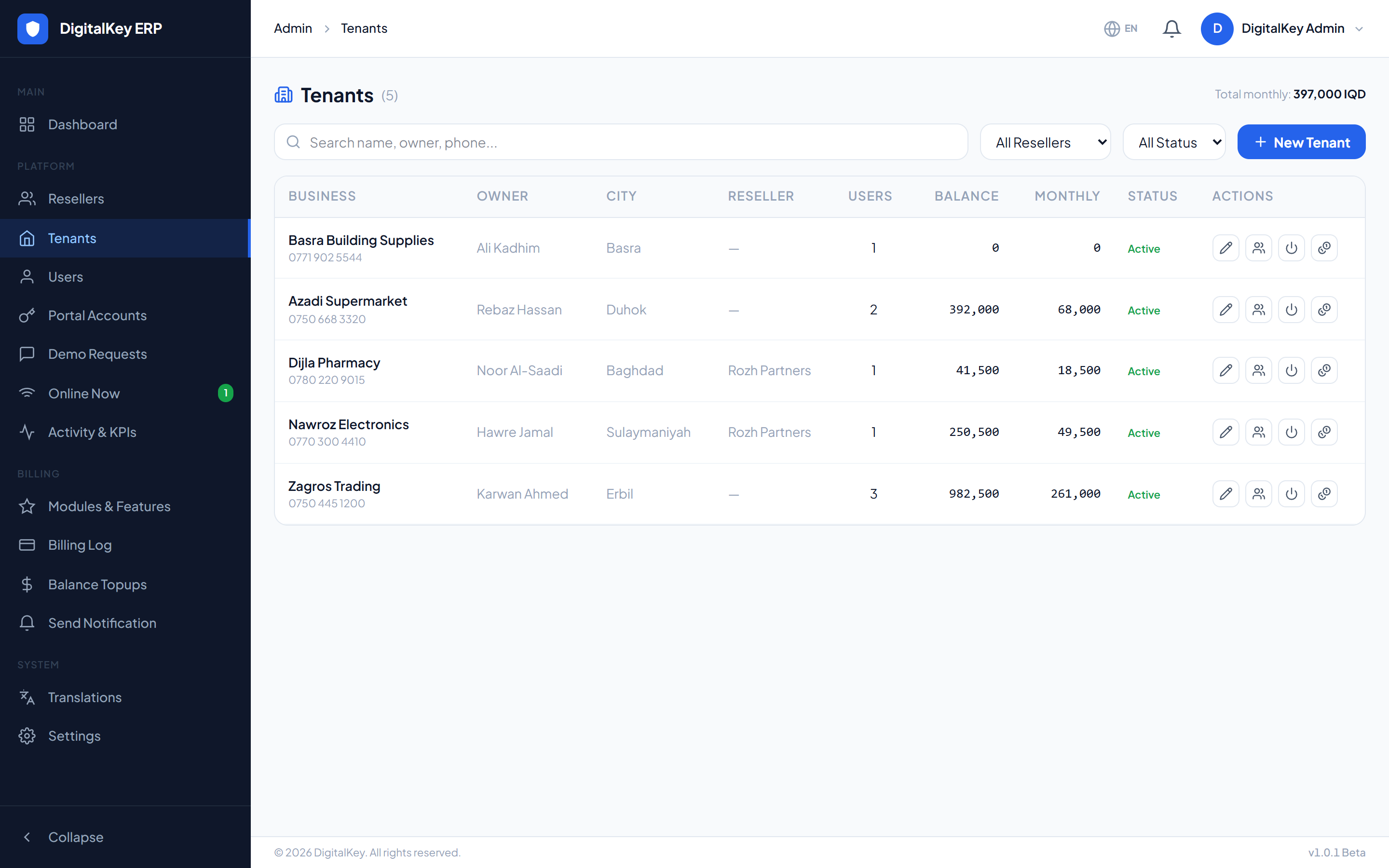
- 1
Open Tenants
Go to Tenants in the admin console.
- 2
Create the business
Enter the business name and owner details. Only the business name is required, but contact details make support far easier later.
Admin — Create tenant form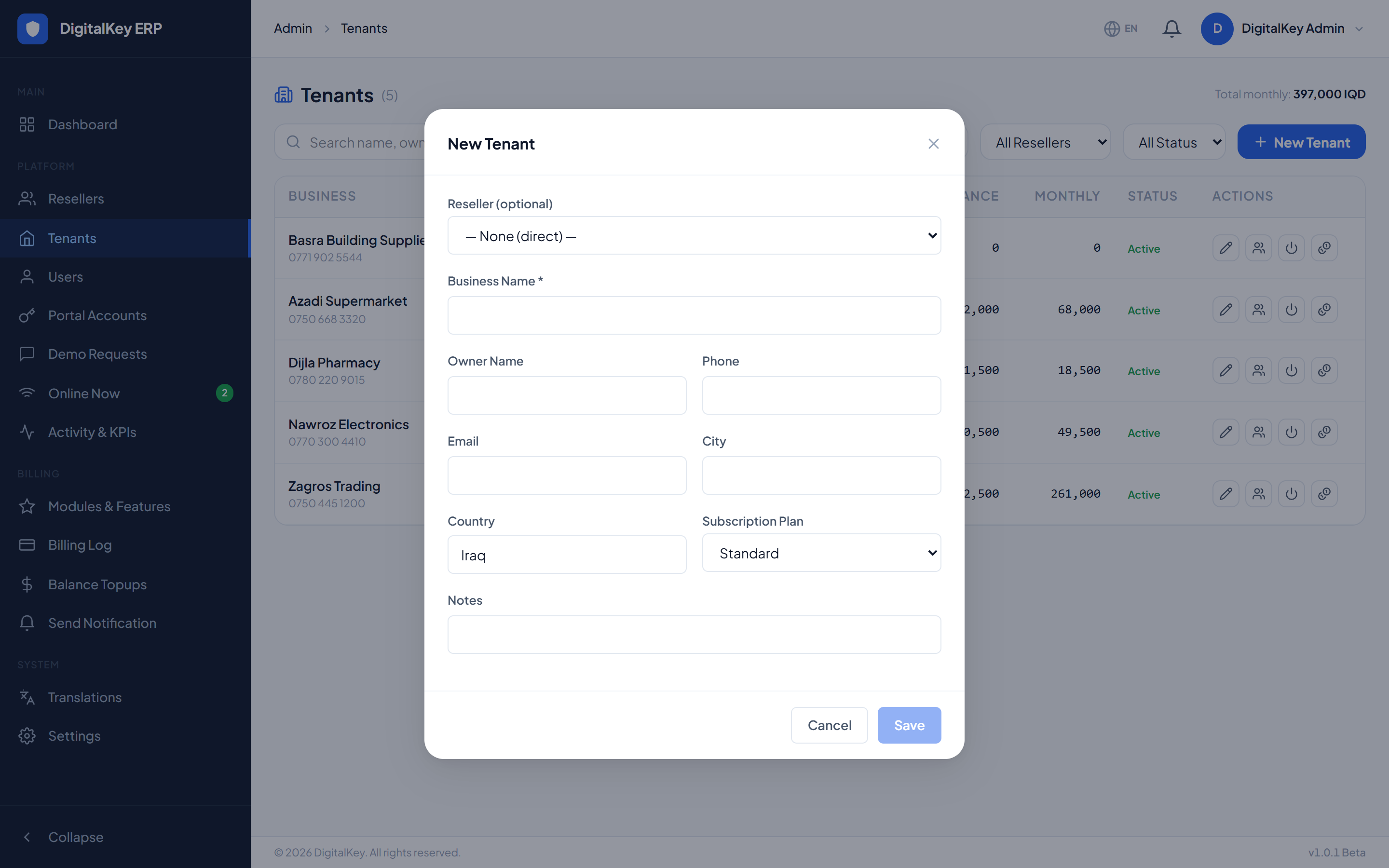
Create tenant form — Business name, owner, contact details, city and reseller assignment. - 3
Assign a reseller (optional)
If a partner brought this customer in, set the reseller so it appears in their portal and they can manage it.
- 4
Create the owner user
Go to Users and create at least one user with the owner role for this tenant. Until then nobody can sign in.
Tenant fields
| Parameter | Type | Required | Description |
|---|---|---|---|
business_name | string | Required | The business's trading name. |
owner_name | string | Optional | Name of the owner. |
email | string | Optional | Business contact email. |
phone | string | Optional | Business contact phone. |
city | string | Optional | City. |
country | string | Optional | Country. |
reseller_id | integer | Optional | Reseller who owns this relationship. Leave empty for a direct customer. |
subscription_plan | string= standard | Optional | Plan label. |
notes | string | Optional | Internal notes. Not visible to the business. |
What the list shows
| Parameter | Type | Required | Description |
|---|---|---|---|
tenant_id | integer | Optional | Identifier. |
reseller_name | string | Optional | Reseller, when assigned. |
user_count | integer | Optional | How many users belong to this business. |
total_balance | decimal | Optional | Combined balance of all its users, in IQD. |
total_monthly_cost | decimal | Optional | Combined monthly cost of all its users. |
is_active | boolean | Optional | Whether the business is enabled. |
created_at | timestamp | Optional | When it was created. |
total_balance against total_monthly_cost is the quickest way to spot a business heading for suspension — less than one month of cover means trouble within weeks.Disabling a tenant
| Parameter | Type | Required | Description |
|---|---|---|---|
id | integer | Required | The tenant to enable or disable. Taken from the URL. |
A tenant's main currency
Each business chooses its main currency once, at the owner's first sign-in, and it is locked from then on. From the tenant list an administrator can see which currency a business chose and when — and, if it was chosen by mistake, clear it so the owner is asked again.
| Parameter | Type | Required | Description |
|---|---|---|---|
GET | endpoint | Optional | The tenant's main currency, when it was set, and whether it can still be cleared. |
POST /reset | endpoint | Optional | Clear the main currency. Refused once the business has any transaction. |
Demo tenancies
Related
- Managing Users — creating the users under a tenant.
- Resellers — assigning a partner.
- Reseller: Managing Tenants — the same job from a partner's side.