Admin Guide
Managing Users
Users are where balance and subscriptions actually live, which makes this the screen where most support work happens.
Last updated 2026-10-13
DigitalKey ERP — Docs · digital-key.co/docs/admin/users
Overview
A user belongs to exactly one tenant, has one role, and carries their own balance and their own feature subscriptions. Two users in the same business are billed entirely separately.
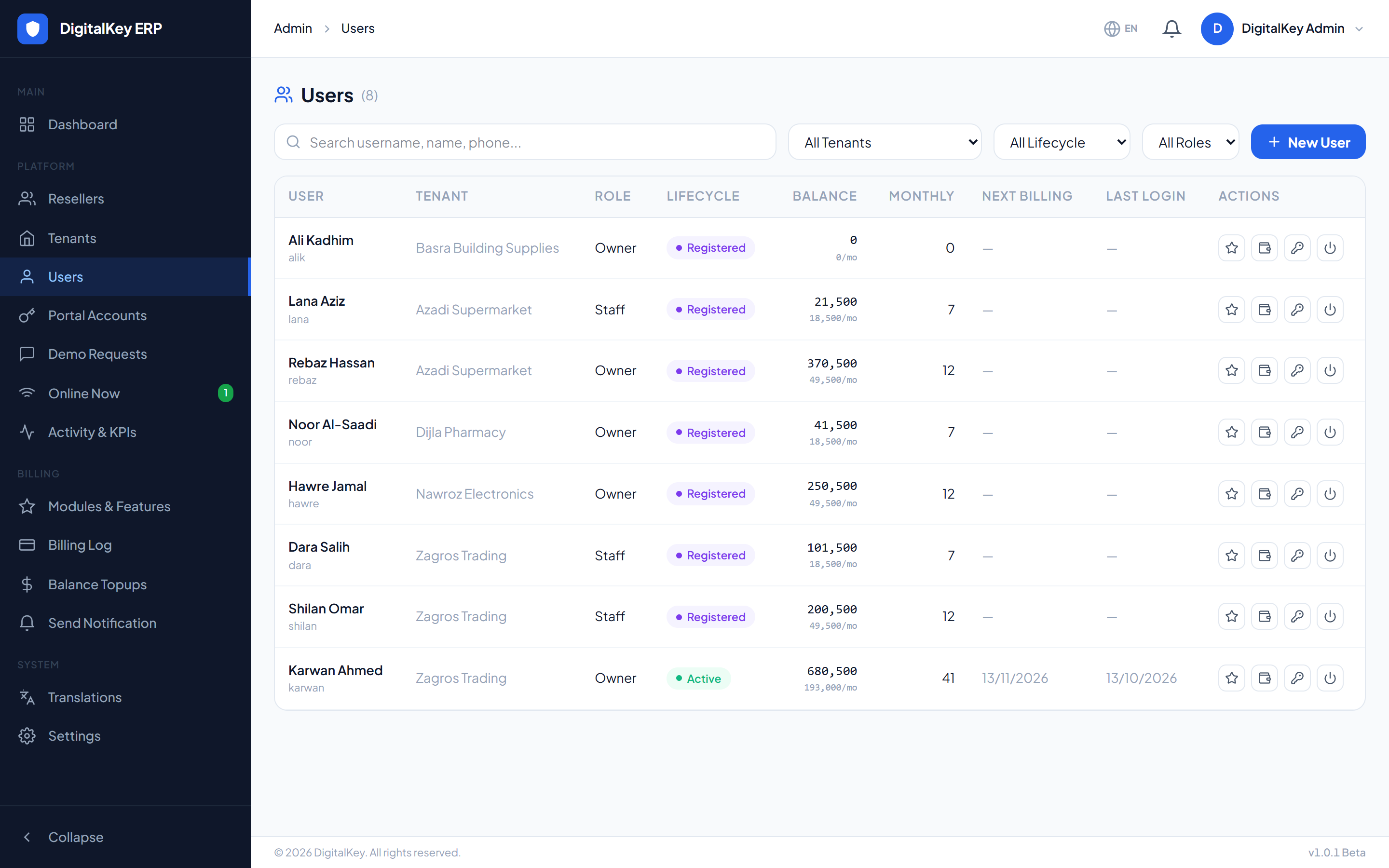
Admin — Users list
Creating a user
POST /api/v1/admin/users
| Parameter | Type | Required | Description |
|---|---|---|---|
tenant_id | integer | Required | Which business the user belongs to. |
username | string | Required | Sign-in name. Must be unique across the platform. |
password | string | Required | Initial password. The user should change it. |
full_name | string | Optional | Display name. |
email | string | Optional | Email address. |
phone | string | Optional | Phone number. |
role | string= staff | Required | owner or staff. |
opening_balance | decimal | Optional | Balance to start the account with, in IQD. |
WarningSet
opening_balance high enough to cover the first month. The first deduction runs the moment the user first signs in — an account created with a zero balance and paid features drops straight into temp_suspend on its very first login.What the list shows
| Parameter | Type | Required | Description |
|---|---|---|---|
tenant_name | string | Optional | Business the user belongs to. |
lifecycle_status | string | Optional | registered, active, temp_suspend, suspend or deactivated. |
balance | decimal | Optional | Current balance in IQD. |
monthly_cost | decimal | Optional | Total monthly cost of their subscriptions. |
billing_day | integer | Optional | Day of the month they are billed. |
next_billing_at | date | Optional | Next deduction date. |
last_billed_at | date | Optional | Last successful deduction. |
first_login_at | timestamp | Optional | When they first signed in. |
last_login_at | timestamp | Optional | Most recent sign-in. |
feature_count | integer | Optional | How many features they subscribe to. |
is_active | boolean | Optional | Whether the account is enabled. |
Assigning features
- 1
Find the user
Locate them in the users list.
- 2
Open their features
The feature panel lists every feature in the catalogue with the ones they already have marked.
Admin — User features panel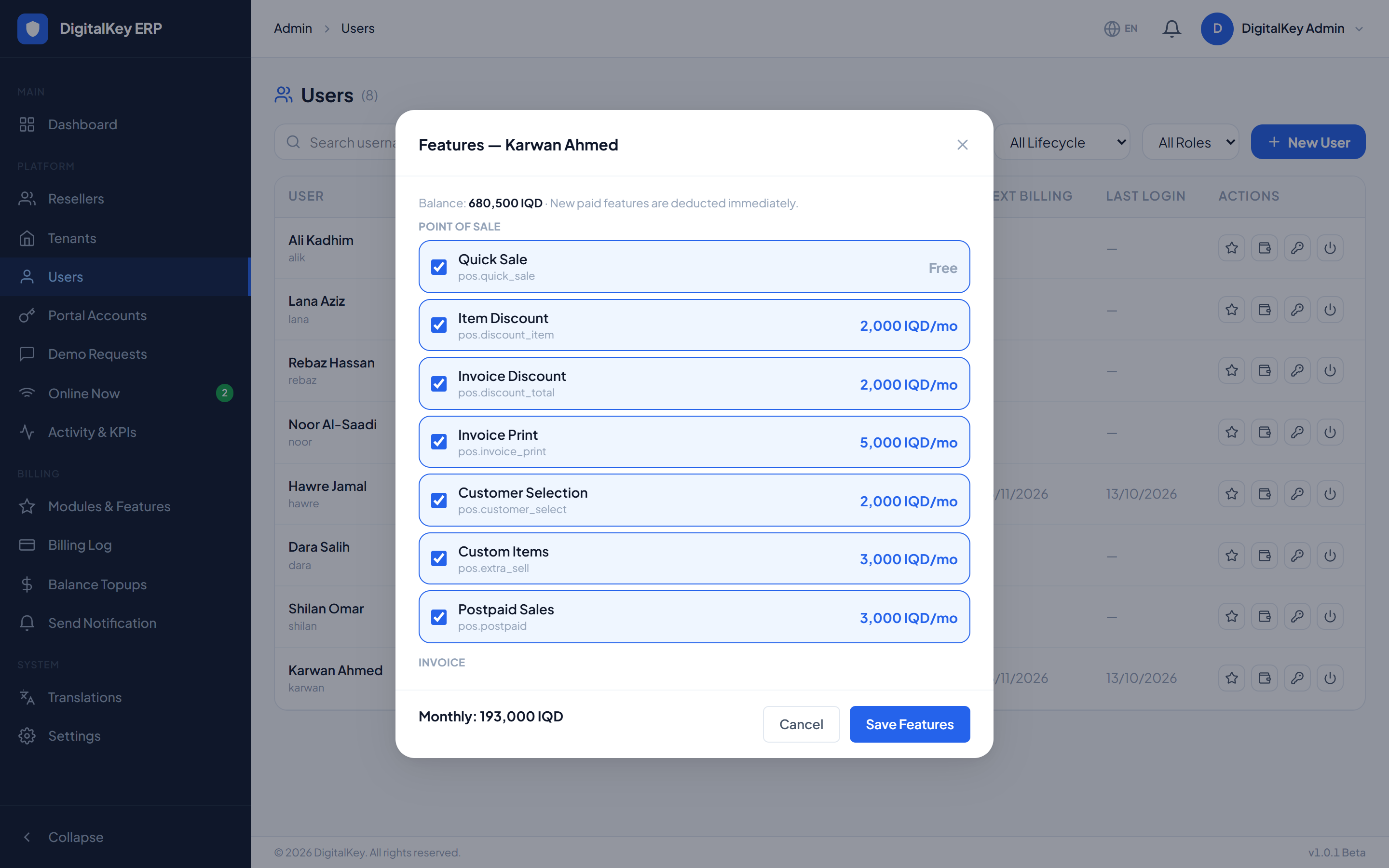
User features panel — The catalogue with subscribed features checked and prices shown. - 3
Select what they should have
Tick to add, untick to remove. Give people what their job needs — a cashier rarely needs finance reporting.
- 4
Save
The new set applies immediately. Capabilities unlock or lock without the user signing out.
PUT /api/v1/admin/users/{id}/features
| Parameter | Type | Required | Description |
|---|---|---|---|
feature_ids | array | Required | The complete set of feature IDs the user should have. This replaces their current set. |
ImportantThe list is a replacement, not an addition. Sending only the feature you want to add removes everything else. Always send the full intended set.
NoteAdding a feature raises the user's monthly cost from their next billing day. It does not take money at the moment of subscribing, so a user can be given a feature before their balance covers it — check the balance against the new monthly total.
Adding balance
POST /api/v1/admin/billing/topup
| Parameter | Type | Required | Description |
|---|---|---|---|
user_id | integer | Required | Who to credit. |
amount | decimal | Required | Amount in IQD. |
notes | string | Optional | Reason or payment reference. |
WarningDuplicate top-ups are guarded: the same user and amount within five seconds counts once. A double-click will not double-credit — but two genuine identical top-ups seconds apart will only register one, so leave a gap.
TipA top-up to a suspended user first collects the month that failed, then reactivates them. To restore a suspended customer, credit at least what they owe — a smaller top-up is kept on the balance and the user stays suspended.
Passwords and access
| Parameter | Type | Required | Description |
|---|---|---|---|
PUT /admin/users/{id}/password | endpoint | Optional | Set a new password. Takes new_password. |
PUT /admin/users/{id}/toggle | endpoint | Optional | Enable or disable the account. |
Important
toggle is a lifecycle switch, and what it does depends on where the user is. An active user is suspended — blocked at sign-in and on any open session. A suspended or temp-suspended user is reactivated (back to registered if they have never signed in, so billing still starts at first login). A deactivated user goes back to registered. See Lifecycle States.Related
- Managing Tenants — the business a user belongs to.
- Billing Controls — deduction and top-up logs.
- Feature Store — what each feature does.