Edit an Invoice
Changing a finished invoice without voiding it — it keeps its number and its date, and only the difference moves.
DigitalKey ERP — Docs · digital-key.co/docs/sales/edit-invoice
Overview
A finished invoice can be corrected in place: a POS sale (INV-…) or a completed sales order (SO-…). Lines can be added, removed or changed, and so can the customer and the payment. The invoice keeps its number, its date and its type, and the version before the change is kept in its edit history.
Who can edit
| Parameter | Type | Required | Description |
|---|---|---|---|
Edit a finished invoice (INV) | sale.edit | Optional | For POS sales. Under Quick POS in the permission matrix. |
Edit a completed order (SO) | order.edit | Optional | For completed sales orders. Under Sales & orders in the permission matrix. |
Which invoices can be edited
| Parameter | Type | Required | Description |
|---|---|---|---|
Earlier month | blocked | Required | Only invoices from the current month can be edited. An older mistake is corrected with a return, which is recorded in the month it happens. |
Has a return | blocked | Required | Once goods have come back against it, the invoice can no longer be edited. Record another return instead. |
Void | blocked | Optional | A voided invoice cannot be edited. |
Not completed | blocked | Optional | Only a completed order is edited this way. A draft is edited in the order form. |
Step by step
- 1
Open the invoice
Find it in Sales and select it. A completed order can also be opened from Sales Orders.
- 2
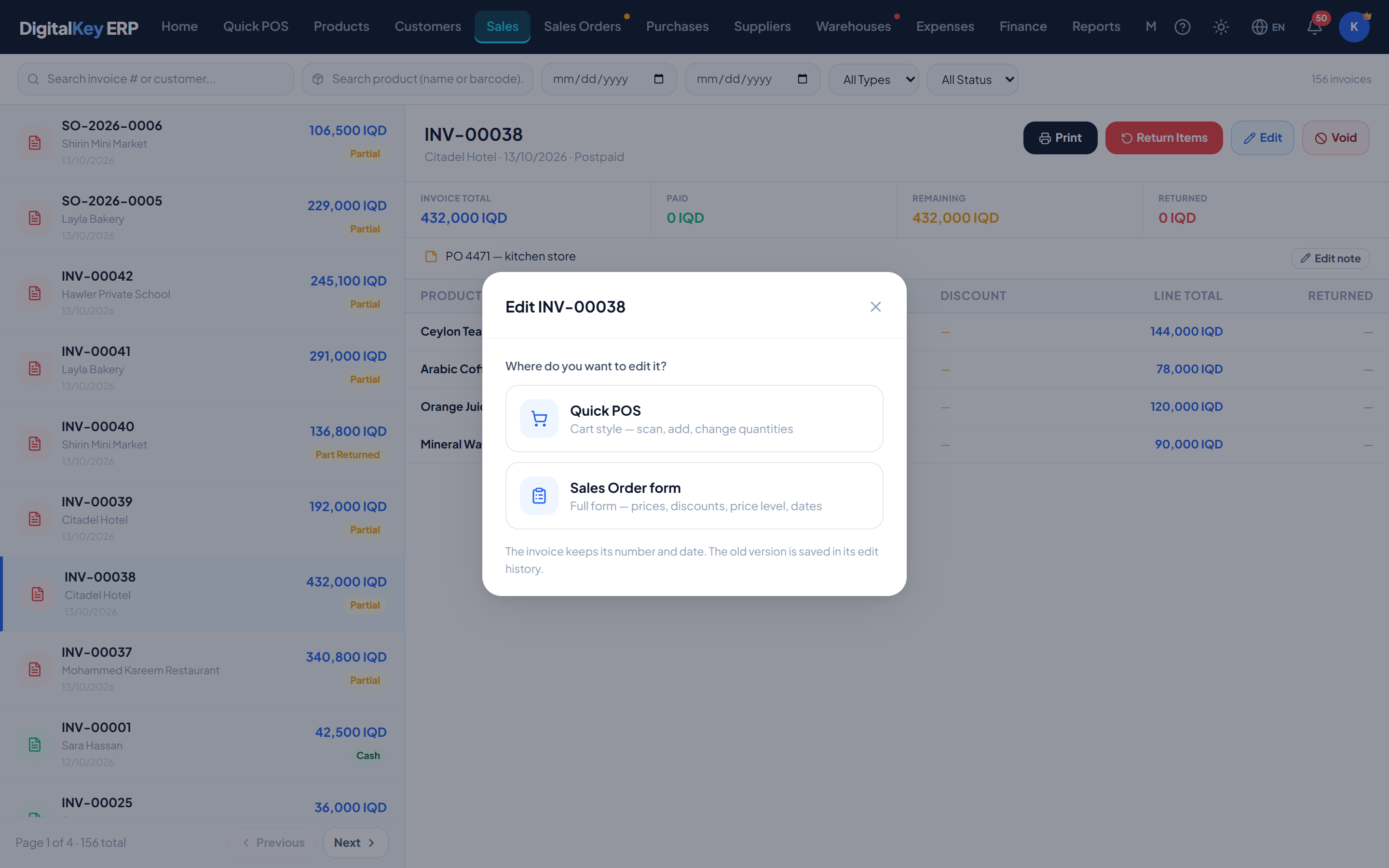
Press Edit and choose the screen
Quick POS is cart style — scan, add, change quantities. The Sales Order form is the full form — prices, discounts, price level, dates. Either screen can edit either kind of invoice.
- 3
Make the changes
A banner shows which invoice is being edited. Change lines, quantities, prices, discounts, the customer or the payment. Cancel edit leaves the invoice as it was.
Point of Sale — Editing an invoice in Quick POS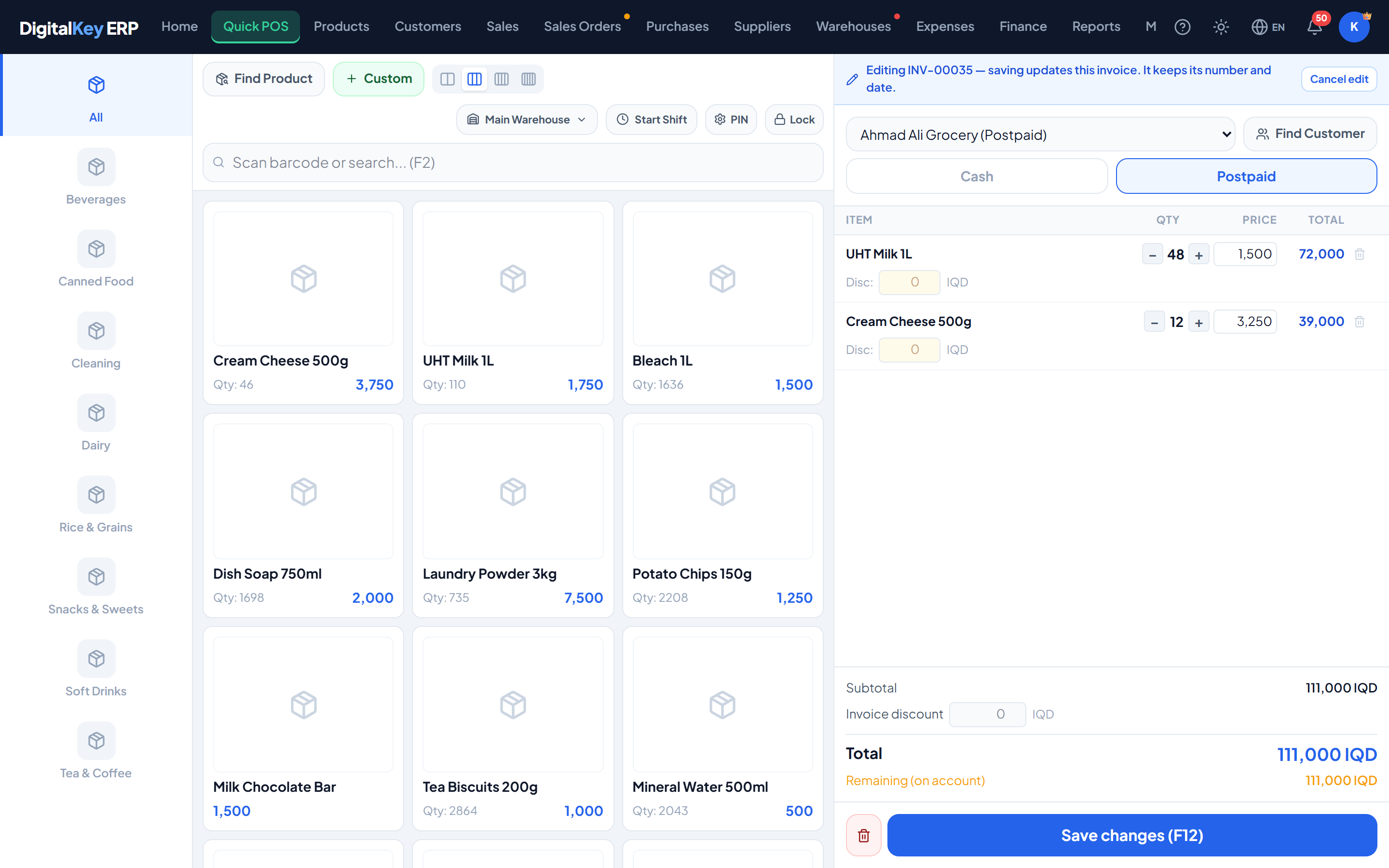
Editing an invoice in Quick POS — The cart loaded with the invoice's lines under the editing banner, with Save changes in place of Complete. - 4
Save changes
Press Save changes (F12 in Quick POS), optionally typing the reason for the change. The invoice is updated and marked Edited.
What an edit does
An edit is treated as the difference between the old invoice and the new one. Nothing is reversed and re-entered; only what changed moves.
- Stock — moves per product by the change only. Units taken off the invoice come back; extra units leave.
- Cost— units that stay keep the cost they were sold at. Units taken off come back at the cost they left at. Extra units leave at today's cost. Past profit is not rewritten.
- Customer balance — the old unpaid remainder is taken off the old customer and the new remainder is put on the new one (who may be the same).
- History — a before-and-after snapshot is saved every time, with who made the change, when, and the reason.
Edit history
An edited invoice shows Edited n×. Opening the history on the invoice panel lists each change, newest first.
| Parameter | Type | Required | Description |
|---|---|---|---|
GET /sales/{id}/edit | endpoint | Optional | The invoice in the shape the editing screens use, or the reason it cannot be edited. |
PUT /sales/{id} | endpoint | Optional | Save the edited invoice. |
GET /sales/{id}/edits | endpoint | Optional | The edit history, with the before and after snapshots. |
Related
- Returns — for older invoices and goods coming back.
- Void a Sale — for a sale that should not exist.
- Team & Permissions — switching the edit permissions on.
- Product Cost — why past costs stay frozen.