Shop Profile & Publishing
How your shop appears to buyers, and which of your products are in its window.
DigitalKey ERP — Docs · digital-key.co/docs/marketplace/shop-and-products
market.publish10,000 IQD / monthSet up the shop
- 1
Open Marketplace → Shop profile
The first time, the page asks you to set up your shop.
Marketplace — Shop profile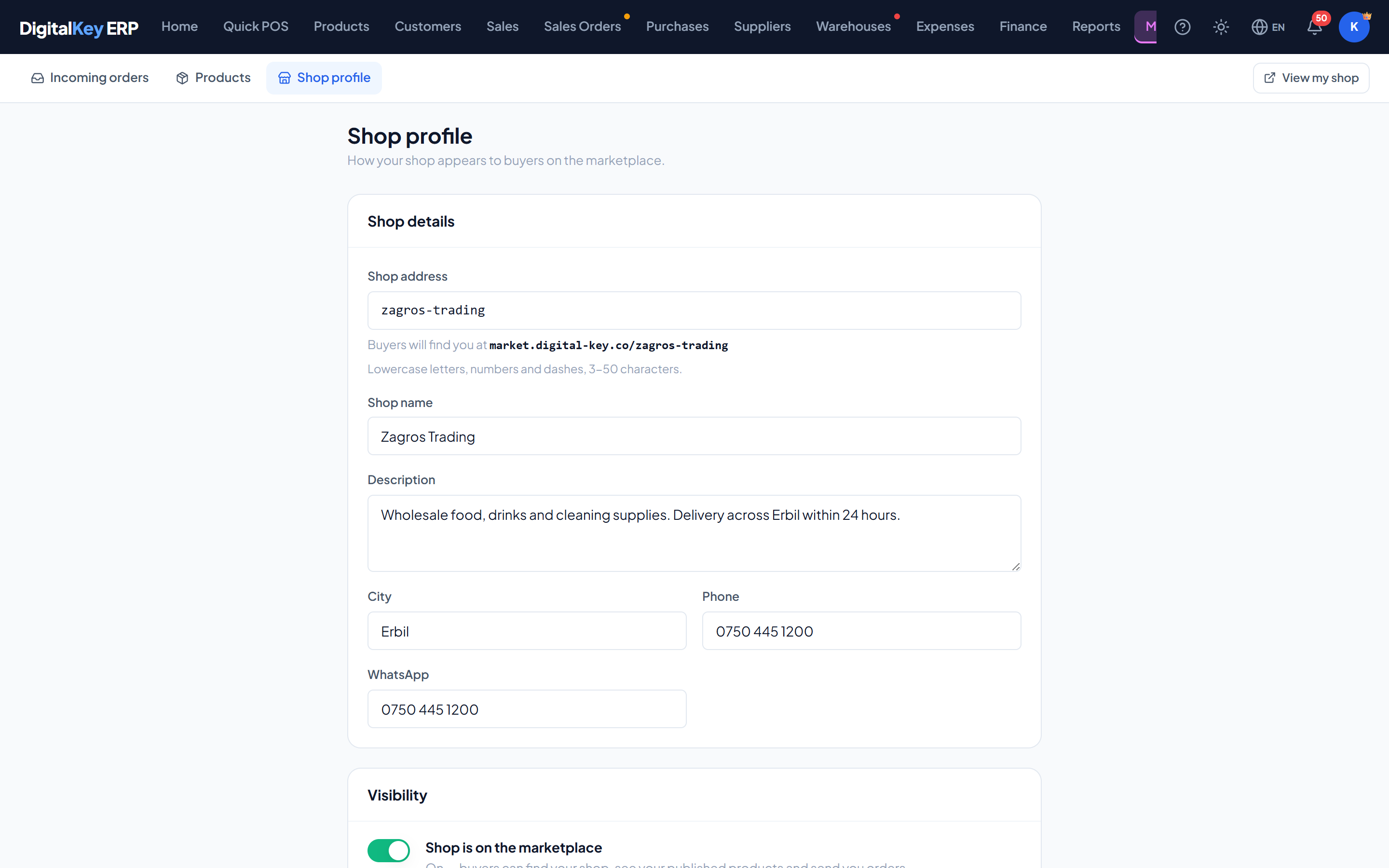
Shop profile — The shop profile form — address, name, description, city, phone, WhatsApp — and the two visibility switches. - 2
Choose the shop address
The short name in your shop's link, shown as a preview while you type. Lowercase letters, numbers and dashes, 3 to 50 characters, not starting or ending with a dash. An address already taken by another shop is refused.
- 3
Fill in the details
Shop name (required), a description of what you sell and where you deliver, city, phone and WhatsApp.
- 4
Save
The shop is saved but stays hidden until you switch it on.
- 5
Publish some products, then switch the shop on
Turn on “Shop is on the marketplace” when the window is ready.
Shop fields
| Parameter | Type | Required | Description |
|---|---|---|---|
Shop address | slug | Required | The link buyers use to find you. Unique across the marketplace. |
Shop name | string | Required | The name shown on your shop page and on orders. |
Description | string | Optional | What you sell, who you sell to, delivery areas. |
City | string | Optional | Buyers can filter shops by city. |
Phone | string | Optional | The number buyers see for your shop. |
WhatsApp | string | Optional | A WhatsApp number for buyers. |
Visibility
| Parameter | Type | Required | Description |
|---|---|---|---|
Shop is on the marketplace | switch | Required | On — buyers can find your shop, see your published products and send you orders. Off — your shop and all its products are removed from the marketplace immediately, and buyers cannot send new orders. |
Show prices | switch | Optional | On — buyers see your selling price on every published product. Off — buyers see “Price on request” instead. |
Publishing products
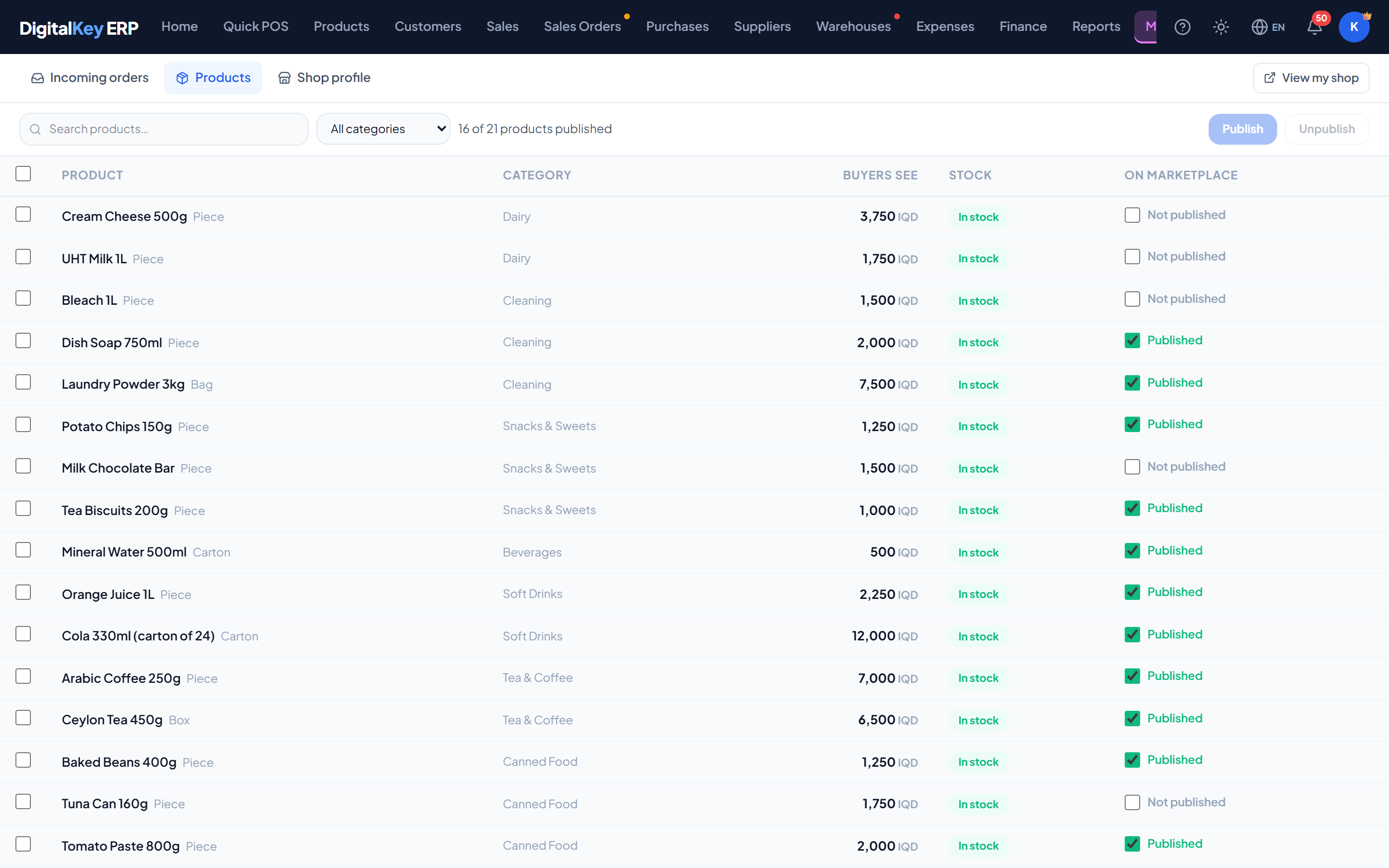
The Products tab lists your catalogue. Search, filter by category, and publish or unpublish one product with its switch — or tick several (or Select all on this page) and use Publish or Unpublish. The header shows how many of your products are published.
| Parameter | Type | Required | Description |
|---|---|---|---|
Product | string | Optional | The product, with its unit. |
Category | string | Optional | Its category in your catalogue. |
Buyers see | price | Optional | The price a buyer is shown — or “Price on request” when prices are off or the product has no price. |
Stock | badge | Optional | In stock or Out of stock — the same yes/no the buyer sees. |
On marketplace | switch | Optional | Whether this product is published. |
What is published about a product
- Its name, unit, category and image, as they are on the product.
- Its selling price, if prices are shown.
- Whether it is in stock — never how many.
| Parameter | Type | Required | Description |
|---|---|---|---|
GET /profile | endpoint | Optional | The shop profile — empty until the shop has been set up. |
PUT /profile | endpoint | Optional | Save the shop profile. |
GET /listings | endpoint | Optional | Your products with their published state. |
POST /listings/publish | endpoint | Optional | Publish a list of products. |
POST /listings/unpublish | endpoint | Optional | Unpublish a list of products. |
Related
- Marketplace — what buyers see and what an order is.
- Incoming Orders — handling what buyers send.
- Adding Products — names, prices and images.