Quick Sale
The complete counter workflow, and the exact shape of the sale the system records when you press Complete.
DigitalKey ERP — Docs · digital-key.co/docs/pos/quick-sale
pos.quick_sale0 IQDOverview
A quick sale is the standard over-the-counter transaction: pick items, take money, hand over goods. Stock comes off the shelf the moment the sale completes — there is no separate confirmation step. If you need an order that is prepared and approved before stock moves, use Sales Orders instead.
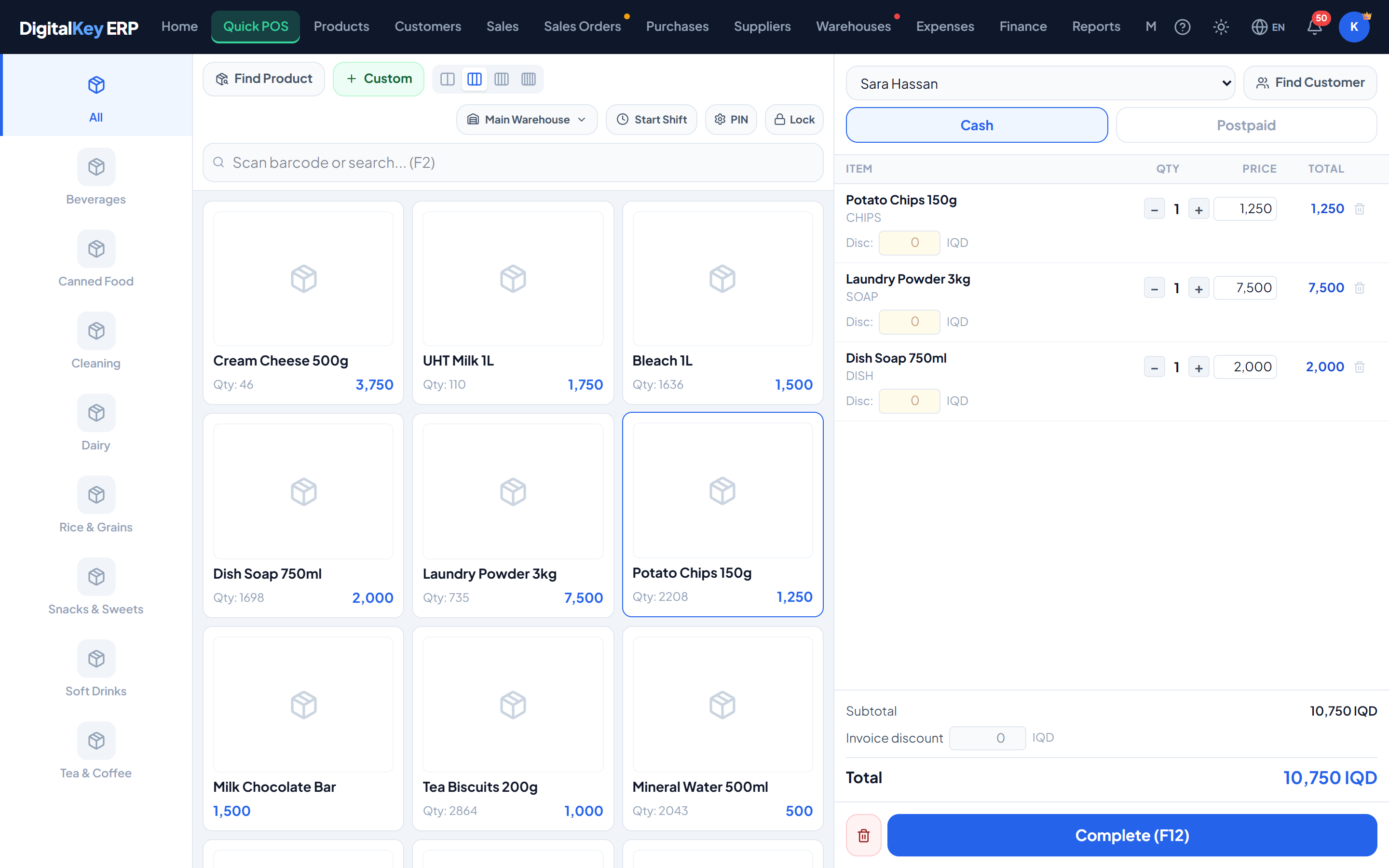
Step by step
- 1
Open the POS
Choose POS from the navigation menu. If a PIN lock is set on the register, enter it first.
Point of Sale — Empty POS screen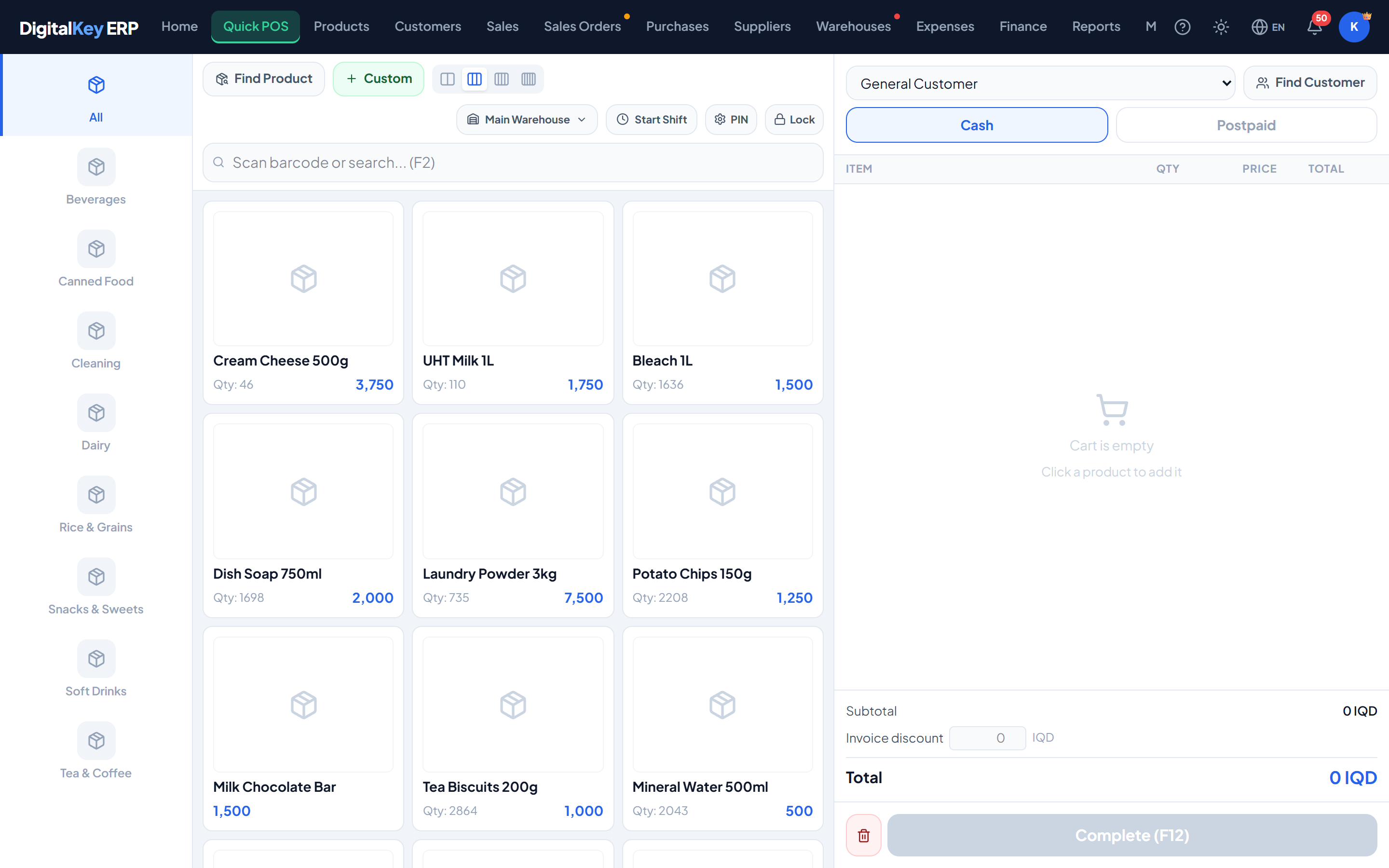
Empty POS screen — The POS as it appears before anything is added to the cart. - 2
Find the product
Type into the search box (F2) to match on product name, SKU or barcode, or tap a card in the grid. With a scanner, scanning fills the box and adds the item in one motion — barcode search needs no subscription.
Point of Sale — Product search results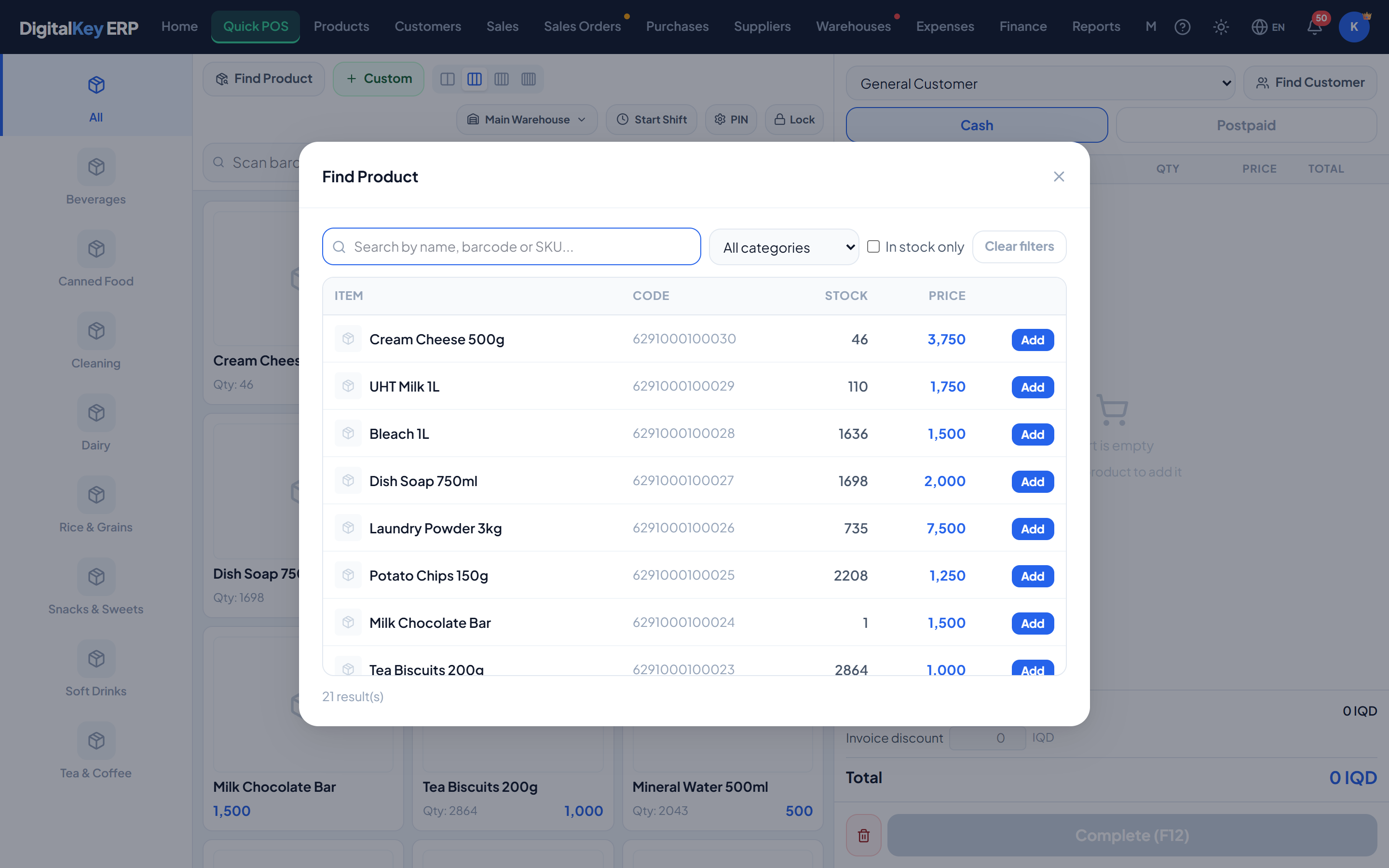
Product search results — Matching products shown as selectable cards with price and stock on hand. - 3
Add it to the cart
Select the product to add one unit. Adjust the quantity with the plus and minus controls, or type the quantity directly. The line total updates as you go. A product sold by the piece that also has a carton price asks Piece or Carton first, and each choice gets its own row. The cart never lets a quantity go past what is in stock.
- 4
Attach a customer (optional)
Search by name or phone number to link the sale to a customer record. Leave it alone for an anonymous cash sale and the default General Customer is used. If the customer has sub-customers, a For box appears so the invoice can be marked for one of their people.
Requires subscriptionpos.customer_select2,000 IQD / monthPoint of Sale — Customer picker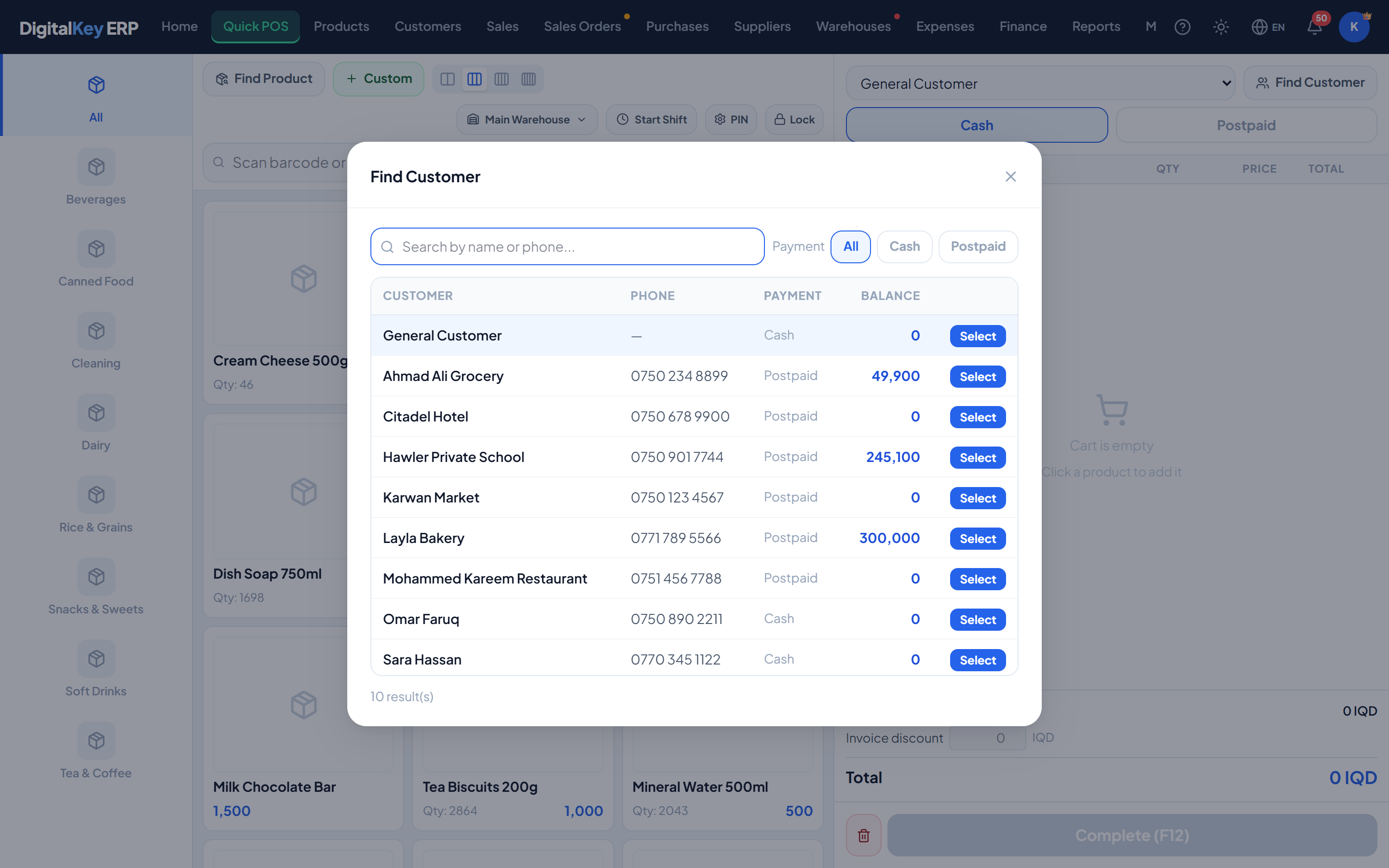
Customer picker — Searching for a customer by name or phone from inside the POS. - 5
Apply discounts (optional)
Discount a single line as a percentage or an amount, or discount the invoice total. The two are separate features and can be used together.
Requires subscriptionpos.discount_item2,000 IQD / monthRequires subscriptionpos.discount_total2,000 IQD / month - 6
Choose the payment type
Cash takes the money now and needs the amount paid. Postpaid puts the remainder on the customer's account, requires a named customer, and is refused if it would take them past their credit limit.
Requires subscriptionpos.postpaid3,000 IQD / monthPoint of Sale — Payment panel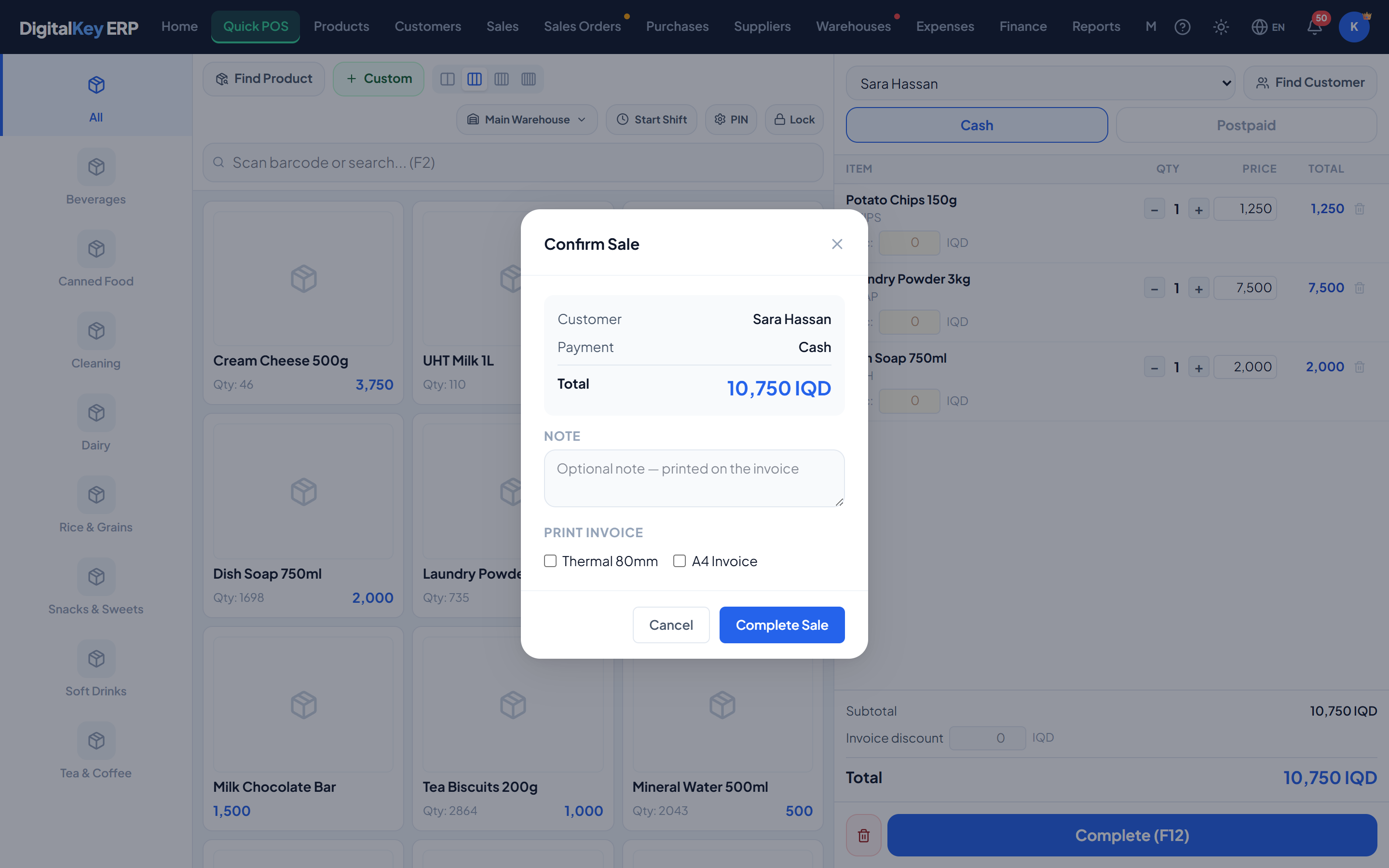
Payment panel — Payment type buttons, the amount tendered field and the change due. - 7
Complete the sale
Press Complete (F12), add a note if you want one printed on the invoice, and confirm. The invoice is written, stock is reduced, and — for a postpaid sale — the customer's balance goes up by whatever is left unpaid.
- 8
Print the invoice (optional)
Print on A4 or on an 80mm thermal roll. What appears on the printout is controlled by your invoice settings.
Requires subscriptionpos.invoice_print5,000 IQD / monthPoint of Sale — Print preview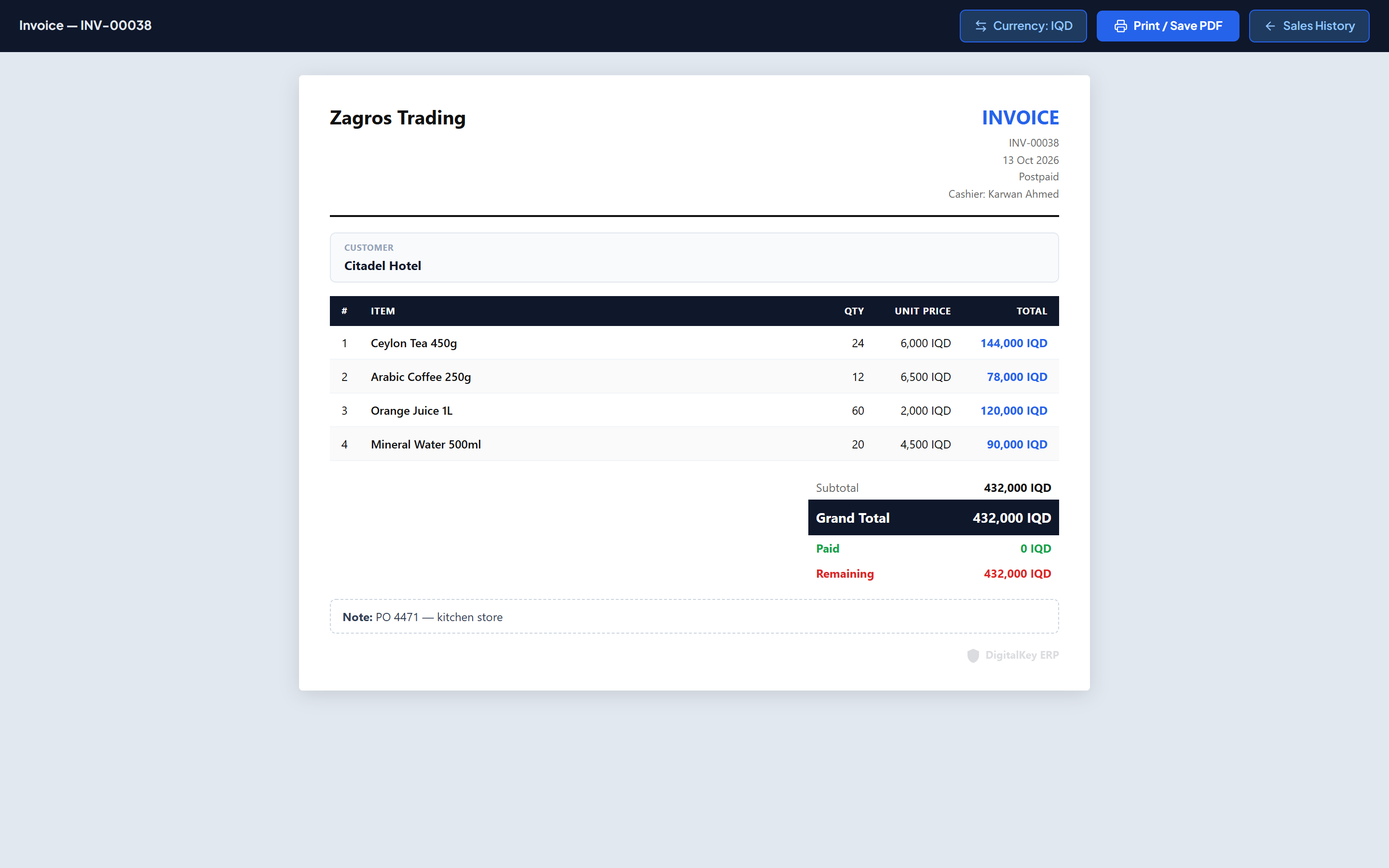
Print preview — The in-page invoice preview with the A4 and thermal size options.
Piece or carton
A product that is sold by the piecekeeps its stock and price per single piece, and can carry a second price for the whole carton. Adding one to the cart asks which you are selling. A box and loose pieces of the same product sit on two rows of the same invoice — “1 carton” and “7 pieces” — and the invoice prints them exactly as typed.
Typing a different price
The price on a cart line can be typed over — a negotiated price, for example. The owner can always do it; a staff member only when the owner has switched on Change the price at the POS for them, which is off by default.
When a sale is refused
- Out of stock — you cannot sell more than the system holds. Receive the goods or correct the count first; nobody can override this.
- Credit limit exceeded — a postpaid sale that would take the customer over their limit. Take a payment, raise the limit, or sell for cash.
- Price below cost — see above.
- No selling price — set a price on the product first.
The sale record
Completing a sale posts to POST /api/v1/sales. Totals are recalculated on the server from the line items, so a tampered total sent by a browser is ignored.
| Parameter | Type | Required | Description |
|---|---|---|---|
customer_id | integer | Required | Customer on the sale. The default walk-in customer is used for anonymous sales. |
payment_type | string= cash | Required | Either cash or postpaid. |
paid_amount | decimal | Required | Amount actually received. For a postpaid sale this may be zero or a part payment. |
discount_total_amt | decimal | Optional | Invoice-level discount as a fixed amount. |
discount_total_pct | decimal | Optional | Invoice-level discount as a percentage. |
notes | string | Optional | Free text stored against the invoice and printed on it. |
sub_customer_id | integer | Optional | The customer's person this invoice is for. Ignored without customer.sub_accounts. |
items | array | Required | The cart lines. A sale must have at least one. |
| Parameter | Type | Required | Description |
|---|---|---|---|
product_id | integer | Optional | The product being sold. Omitted for a free-text extra-sell line. |
custom_name | string | Optional | Item name for an extra-sell line that has no product record. |
is_extra_sell | boolean= false | Optional | Marks the line as an unregistered item. Requires pos.extra_sell. |
qty | decimal | Required | Quantity sold. Decimals are allowed for weighed goods. |
unit_price | decimal | Required | Price per line unit before any discount, in the business's main currency. |
by_pack | boolean= false | Optional | The line is a whole carton of a product sold by the piece. Stock moves by its pieces. |
discount_pct | decimal | Optional | Line discount as a percentage. |
discount_amt | decimal | Optional | Line discount as a fixed amount. |
line_total | decimal | Required | Line total after discount. Recomputed server-side. |
{
  "customer_id": 1,
  "payment_type": "cash",
  "paid_amount": 25000,
  "discount_total_amt": 0,
  "items": [
    {
      "product_id": 42,
      "qty": 2,
      "unit_price": 10000,
      "discount_pct": 0,
      "discount_amt": 0,
      "line_total": 20000
    },
    {
      "product_id": 17,
      "qty": 1,
      "unit_price": 5000,
      "discount_pct": 0,
      "discount_amt": 0,
      "line_total": 5000
    }
  ]
}pos.discount_item, or a postpaid payment type without pos.postpaid, is rejected rather than silently accepted.Related
- Discounts — how the two discount types combine.
- Postpaid Sales — credit sales and limits.
- Print Invoice — A4 and thermal printing.
- Sales History — finding a sale afterwards.