First Login
Your first sign-in is the moment your subscription starts. Here is exactly what the system does, and what to check if it does not let you in.
DigitalKey ERP — Docs · digital-key.co/docs/getting-started/first-login
What happens on first login
A new account is created in the registered state and is not billed for anything. Signing in for the first time activates it and starts the billing clock. This happens once, automatically, and takes no action from you.
- 1
Enter your credentials
Open the login page and enter the username and password given to you by your administrator or reseller. Pick your language with the EN / KU / AR buttons — the choice is remembered on this device.
Authentication — Login page
Login page — Username and password fields, the language buttons and the sign-in button. - 2
The system activates your account
On a successful first sign-in the account moves from registered to active, today's day-of-month is stored as your billing day, and the first monthly charge for your subscribed features is deducted from your balance.
- 3
The owner chooses the main currency
The first time the owner of a new business signs in, the system asks which currency the business works in. Every price, cost, sale, purchase and report is recorded in it, and it cannot be changed afterwards — so it asks you to confirm. Until it is chosen nothing can be saved; a staff member who signs in first is asked to have the owner choose.
Getting Started — Choose your main currency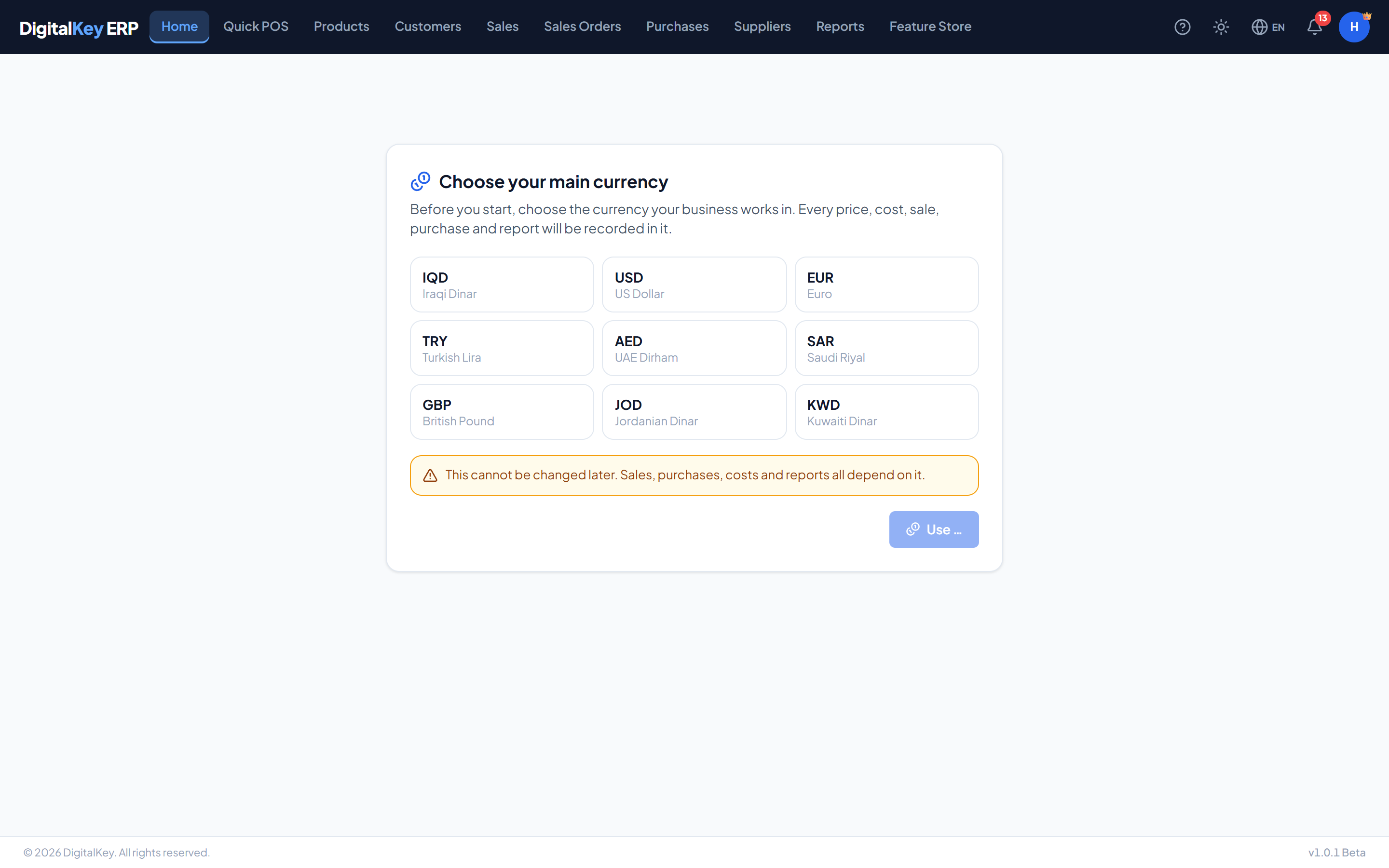
Choose your main currency — The one-time currency choice shown to the owner of a new business. - 4
The dashboard loads
You land on the dashboard. From here the navigation bar across the top gives you the areas your subscription includes — anything you have not subscribed to, or the owner has switched off for you, is hidden or shown locked.
Getting Started — Dashboard on first load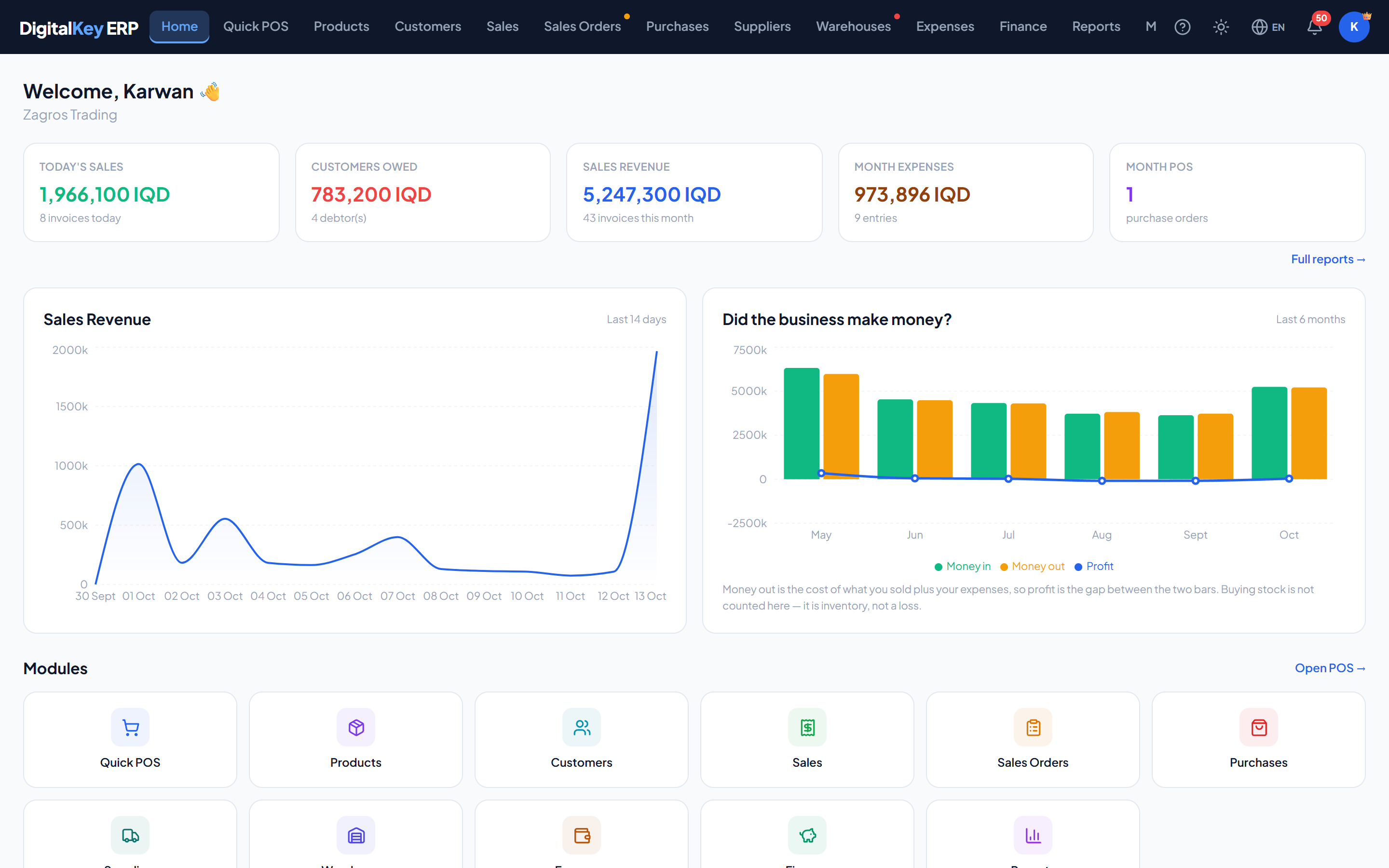
Dashboard on first load — The landing screen immediately after a first successful sign-in.
Login parameters
The login form posts to POST /api/v1/auth/login. Both fields are required.
| Parameter | Type | Required | Description |
|---|---|---|---|
username | string | Required | Your username. Not case-sensitive on lookup, but type it as issued. |
password | string | Required | Your password. |
What gets set on your account
These fields are written once, at first sign-in, and drive every later billing run. You can see them on My Account.
| Parameter | Type | Required | Description |
|---|---|---|---|
lifecycle_status | string | Optional | Moves from registered to active. |
billing_day | integer | Optional | Day of the month you first signed in — the day you are billed every month thereafter. |
first_login_at | timestamp | Optional | When you first signed in. Never changes again. |
activated_at | timestamp | Optional | When the account became active. |
next_billing_at | date | Optional | The next date a deduction is due. |
last_login_at | timestamp | Optional | Updated on every sign-in, not just the first. |
Common sign-in problems
“Account suspended”
A monthly deduction failed and the first grace period ran out without a top-up. Sign-in is refused until the balance is topped up by enough to cover the unpaid month — then the account comes back on its own. Contact your administrator or reseller to add balance.
“Account deactivated”
Your account reached the end of both grace periods, or an administrator closed it. Contact your administrator or reseller — topping the balance up alone will not reopen a deactivated account.
“Trial expired”
Demo tenancies carry an expiry date. Once it passes, the next sign-in attempt disables the account and reports the trial as expired. Contact your reseller to convert the demo into a paid tenancy.
Invalid credentials
The username or password did not match, or the account (or its business) has been marked inactive. The message is deliberately the same in all of those cases so it cannot be used to discover which usernames exist.
Related
- Lifecycle States — the full billing timeline.
- My Account — your balance and subscriptions.
- Dashboard — what the landing screen shows.