Adding Products
The complete product form, field by field.
DigitalKey ERP — Docs · digital-key.co/docs/products/add-product
Overview
Only a name and the prices are genuinely needed to start selling. Everything else makes the product easier to find, count and report on, and can be filled in later.
- 1
Open the product form
Go to Products and choose Add Product.
Products — Product list with the add button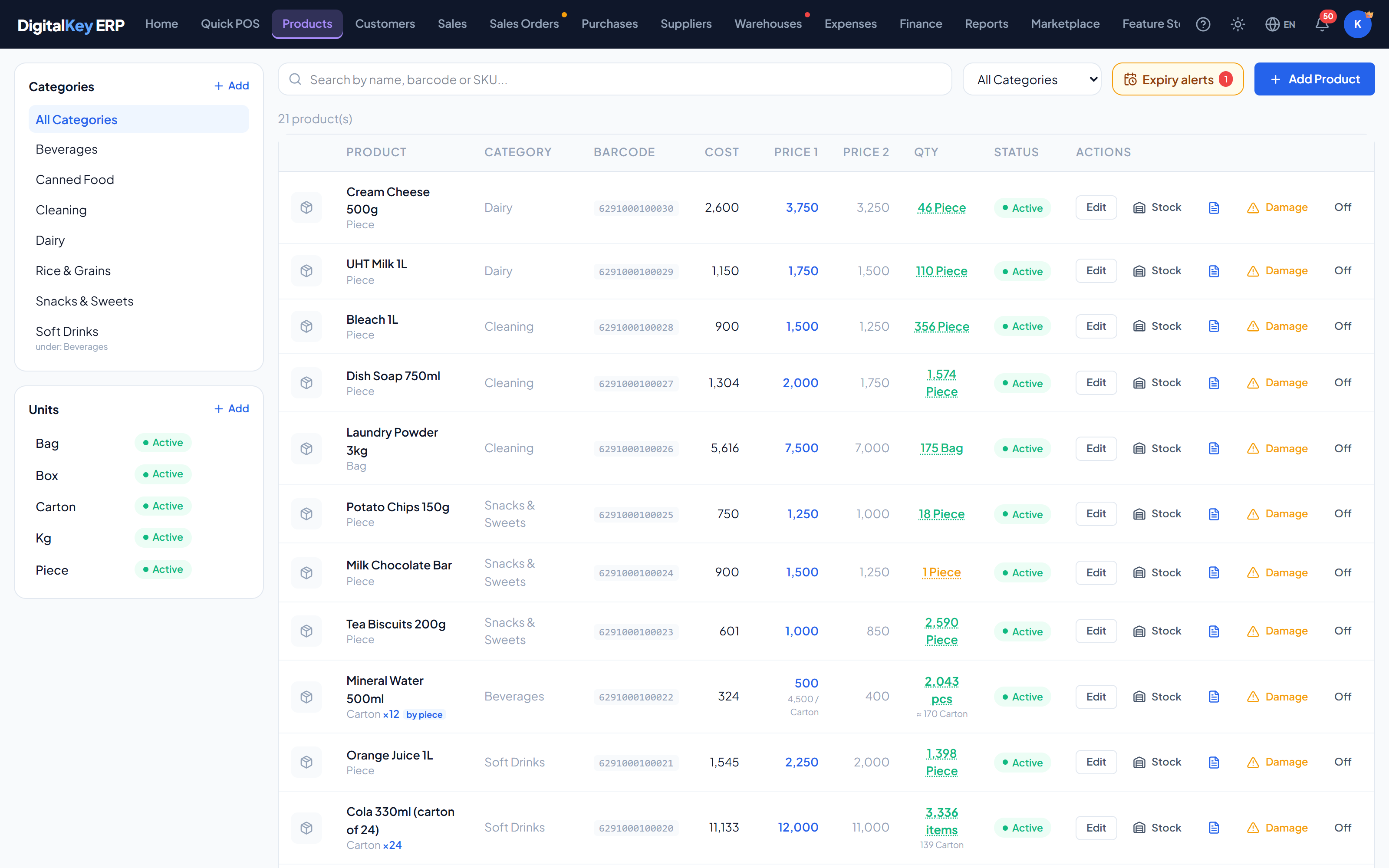
Product list with the add button — The catalogue screen highlighting where a new product is started. - 2
Enter the identity fields
Give the product a name — this is what the cashier sees. Scan or type a barcode, or press Generate to have a free one made for you. Add a SKU if you use your own coding.
Products — Product form, identity section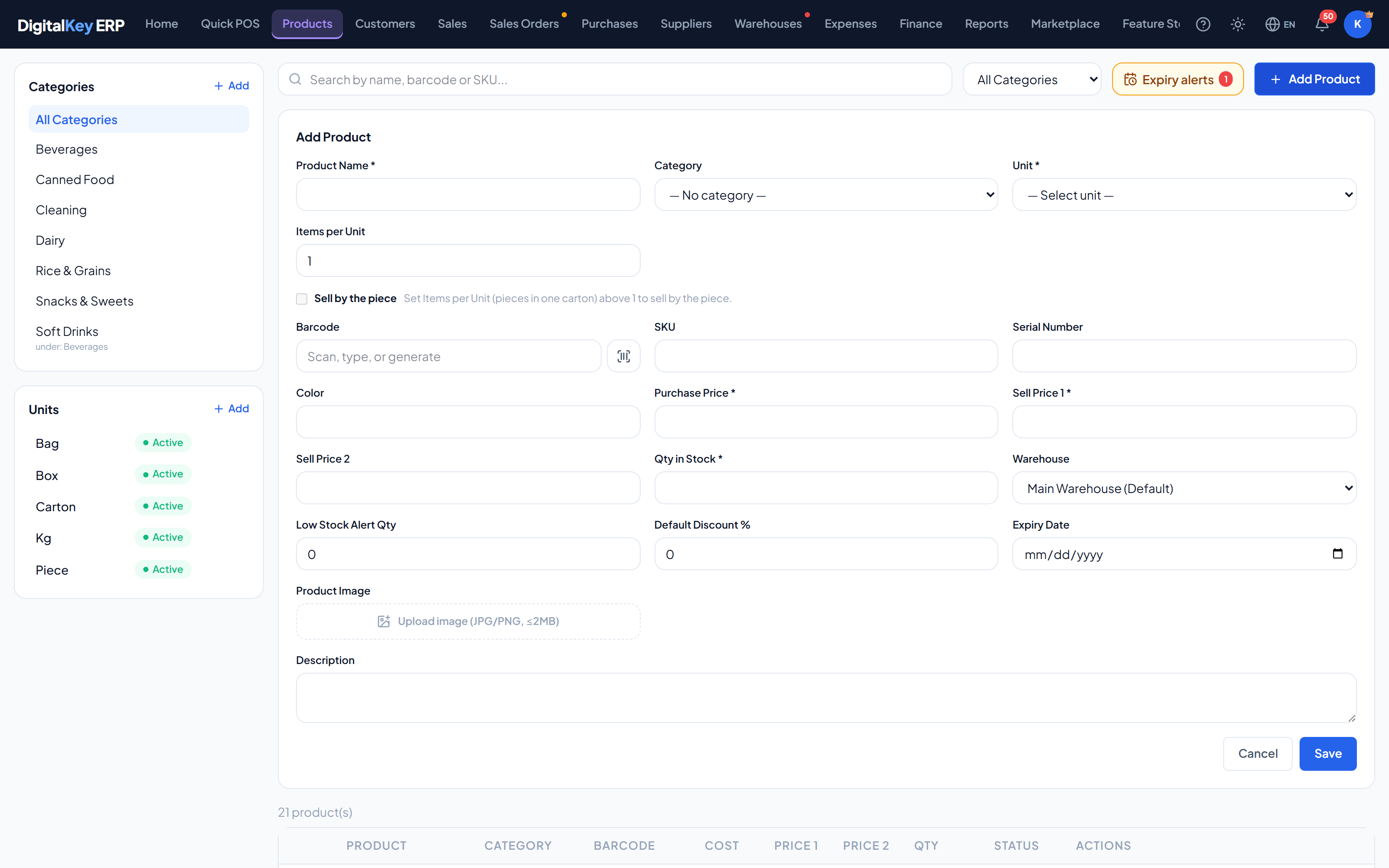
Product form, identity section — Name, category, unit, barcode, SKU, colour and serial number fields. - 3
Set the prices
Enter what the item costs you and what you sell it for. The cost price is what makes profit reporting possible, so it is worth filling in accurately. A selling price lower than the purchase price is refused.
- 4
Set the opening stock
Enter the quantity you currently hold and, if you want to be warned when it runs low, the alert level. With more than one warehouse you can also say where the opening stock sits.
Products — Product form, stock section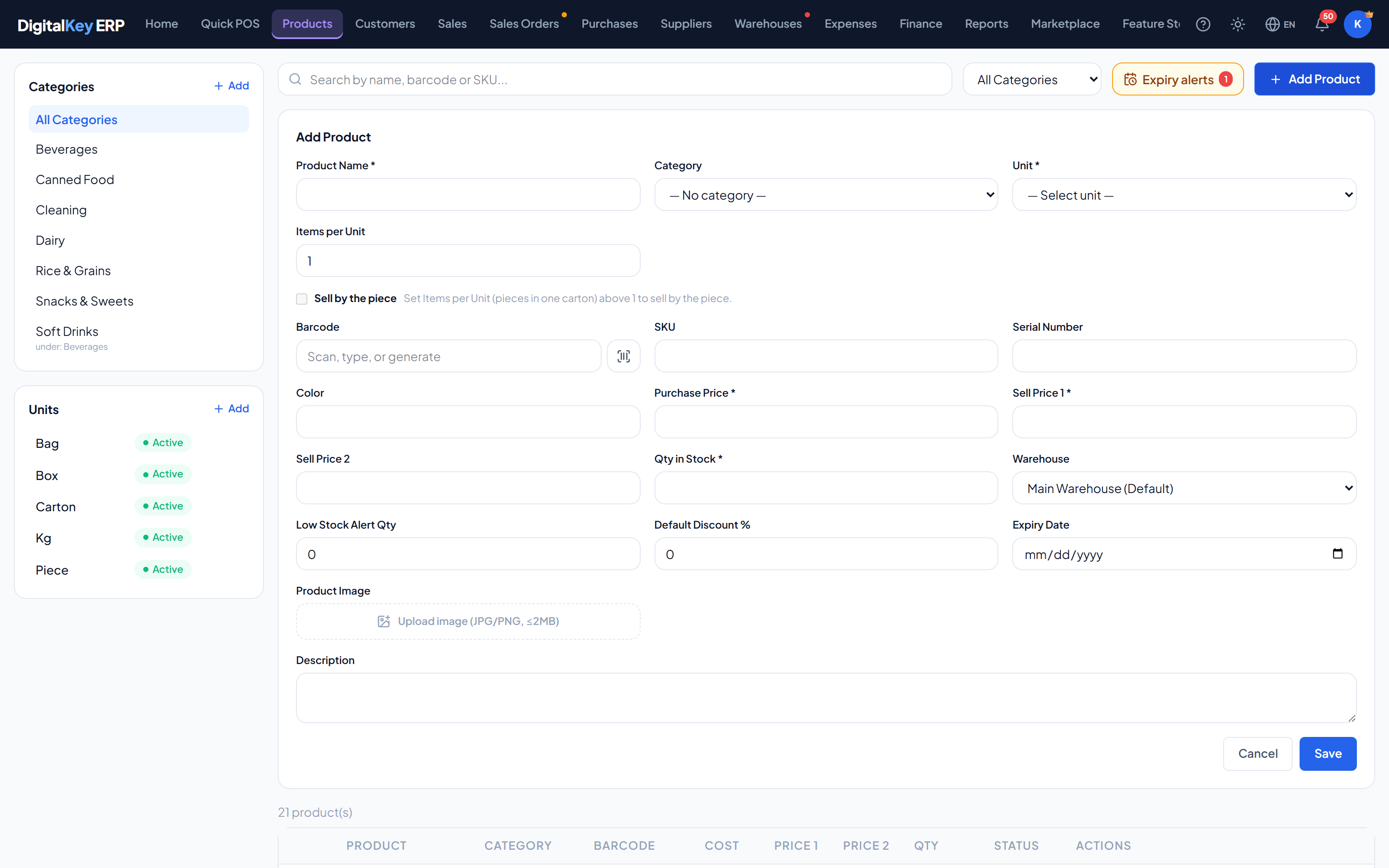
Product form, stock section — Stock quantity, alert level, pack size and expiry date fields. - 5
Upload an image (optional)
A picture makes the product easier to pick out in the POS grid. JPG and PNG are accepted.
- 6
Save
The product becomes sellable in the POS straight away.
Product fields
| Parameter | Type | Required | Description |
|---|---|---|---|
name | string | Required | Product name shown in the POS and printed on invoices. |
category_id | integer | Optional | Category this product belongs to. |
unit_id | integer | Optional | Unit of measure — piece, box, kg and so on. |
barcode | string | Optional | Barcode value. Matched by scanner search in the POS. |
sku | string | Optional | Your own stock-keeping code. |
serial_number | string | Optional | Serial number, for serialised goods. |
color | string | Optional | Colour or variant label. |
description | string | Optional | Longer description. Not printed on invoices. |
unit_qty | integer= 1 | Optional | Items per Unit — how many pieces make up one unit (the carton size). |
sell_by_piece | boolean= false | Optional | Sell by the piece: stock, cost and price count single pieces. Needs Items per Unit above 1. |
pack_price | decimal | Optional | Carton price, when the product is sold by the piece. |
purchase_price | decimal | Required | Cost price, in your main currency. The starting point of the weighted average; later receipts blend into it. |
sell_price1 | decimal | Required | Retail price. The default selling price. May not be below the purchase price. |
sell_price2 | decimal | Optional | Wholesale price, selected with price level 2. May not be below the purchase price. |
discount_pct | decimal | Optional | Default discount percentage pre-filled when the item is added to a cart. |
qty_in_stock | decimal | Required | Opening quantity on hand. |
qty_alert | decimal | Optional | Low-stock threshold. At or below this the item is flagged. |
expiry_date | date | Optional | Expiry date, for perishable or dated goods. |
image_url | string | Optional | Path to the product image, set by the upload. |
initial_warehouse_id | integer | Optional | Which warehouse the opening stock is placed in. Only meaningful with more than one warehouse. |
Price levels
sell_price1 is the retail price and is used by default. sell_price2 is the wholesale price. The level is chosen per sales order through its price_level field, which takes the value 1 or 2.Who can add and edit
The owner, and staff with Add / edit products. Uploading an image needs product.image_upload. A product can also be created on the spot from a purchase line, where it can be given a selling price straight away — a product with no price cannot be sold until one is set.
Cost after the first save
Stock alerts
When qty_in_stock falls to or below qty_alert, the product is treated as low on stock: it is flagged in the product list and appears in warehouse alerts.
warehouse.alerts. Without it the threshold is still recorded and still shown in the product list.Images
Images are uploaded through POST /api/v1/products/upload-image, which accepts JPG and PNG only (max 2MB) and returns the full public URL to put in image_url. Files are stored in Cloudflare R2 and served from the asset domain; the filename is a hash of the image content, so it cannot be guessed.
Related
- Categories — before adding many products, set these up.
- Units — what
unit_qtyis counted in. - Sell by the Piece — the carton and piece prices.
- Stock Management — what happens to quantities afterwards.