Incoming Orders
An order from the marketplace is a buyer asking. This is where you answer.
DigitalKey ERP — Docs · digital-key.co/docs/marketplace/orders
market.publish10,000 IQD / monthThe list
Marketplace → Incoming orders lists what buyers have sent, newest first. Filter by status, and press Refresh to check for new ones.
| Parameter | Type | Required | Description |
|---|---|---|---|
Order no | string | Optional | The order's number. |
Buyer / Business | string | Optional | Who sent it and the business they buy for. |
Phone / City | string | Optional | How to reach them and where they are. |
Lines | integer | Optional | How many products are on the order. |
Total | decimal | Optional | The order's total at your prices — empty when your prices were hidden. |
Received | age | Optional | How long ago it arrived. |
Status | badge | Optional | Pending, Confirmed, Rejected or Cancelled. |
Statuses
| Parameter | Type | Required | Description |
|---|---|---|---|
Pending | status | Required | Waiting for your answer. The buyer can still cancel it. |
Confirmed | status | Optional | You accepted it. The buyer is told. |
Rejected | status | Optional | You declined it, with a reason the buyer sees. |
Cancelled | status | Optional | The buyer withdrew it while it was still pending. |
Handling an order
- 1
Open the order
You see the buyer, their business, phone and city, any note they wrote, and the lines with unit, quantity and price.
Marketplace — A marketplace order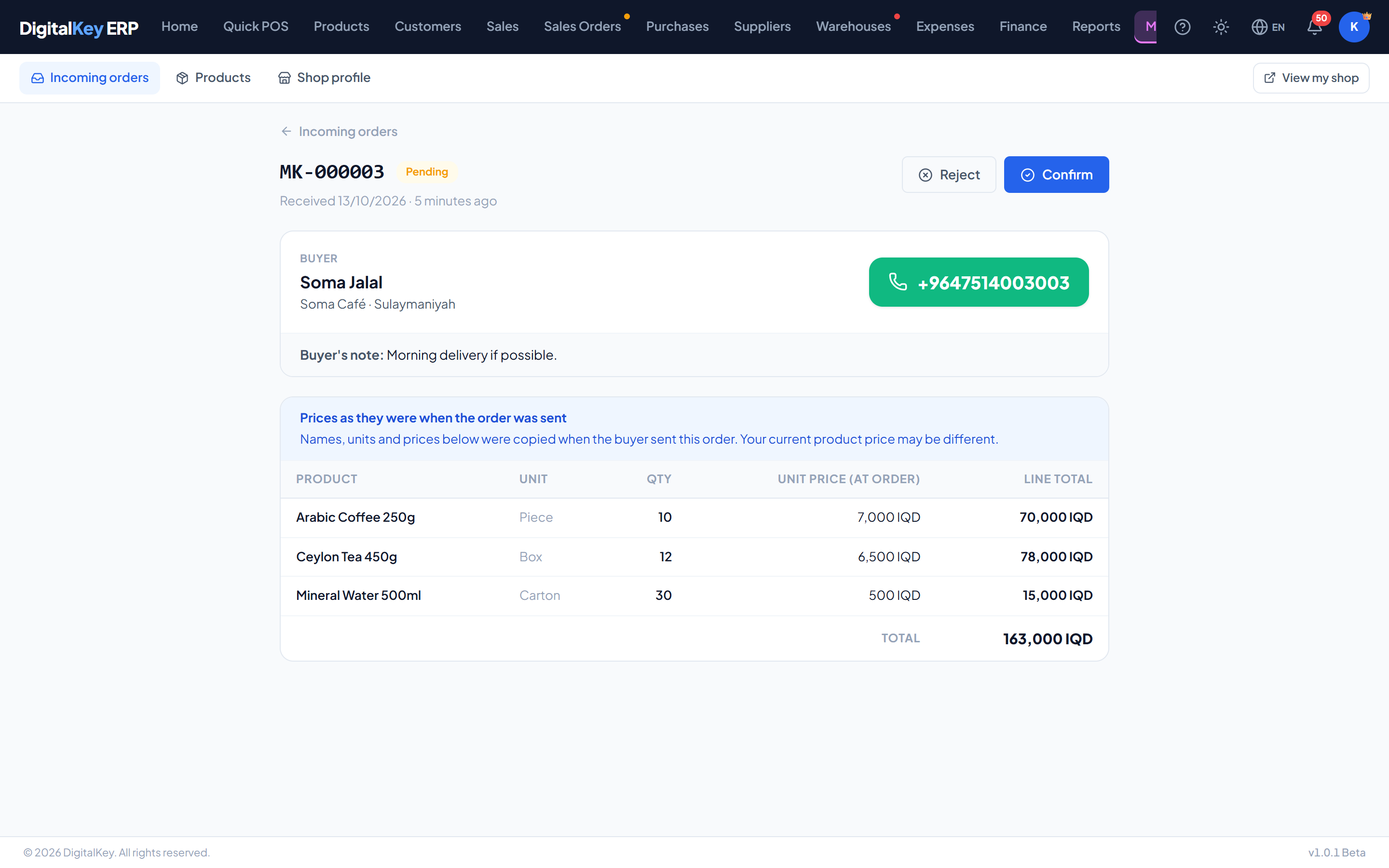
A marketplace order — An incoming order with the buyer's details, their note, the lines as they were when the order was sent, and the Confirm and Reject buttons. - 2
Phone the buyer
Agree what is available, the final price, delivery and how they will pay. The order is a starting point for that conversation.
- 3
Confirm or Reject
Confirm tells the buyer you accept. Reject needs a reason — for example “Out of stock until next week” — and the buyer sees it.
- 4
Record the sale
When the goods go out, ring the sale up in Quick POS or raise a Sales Order, exactly as for any other customer. That is what moves stock and money.
Prices on an order are a snapshot
The names, units and prices on an order were copied at the moment the buyer sent it. If you have changed a price since, the order still shows what the buyer saw — your current product price may be different. If your prices were hidden when the order was sent, the order carries no prices at all.
Linking the buyer to a customer
When confirming, you can choose one of your own customers for this buyer. It is optional — you can confirm without one.
- The next order from the same buyer is matched to that customer automatically, and you can change it.
- Linking does not put anything on the customer's balance; it only saves you finding them again.
- Choosing a customer needs the Customers feature. Without it you simply confirm without one.
One cart, several shops
| Parameter | Type | Required | Description |
|---|---|---|---|
GET /orders | endpoint | Optional | Your incoming orders, paged, by status. |
GET /orders/{id} | endpoint | Optional | One order with its lines. Another shop's order is not found. |
POST /orders/{id}/confirm | endpoint | Optional | Confirm, optionally linking a customer. |
POST /orders/{id}/reject | endpoint | Optional | Reject, with the reason shown to the buyer. |
Related
- Marketplace — what an order is and is not.
- Quick Sale — recording the sale.
- Creating Orders — for a sale agreed before delivery.